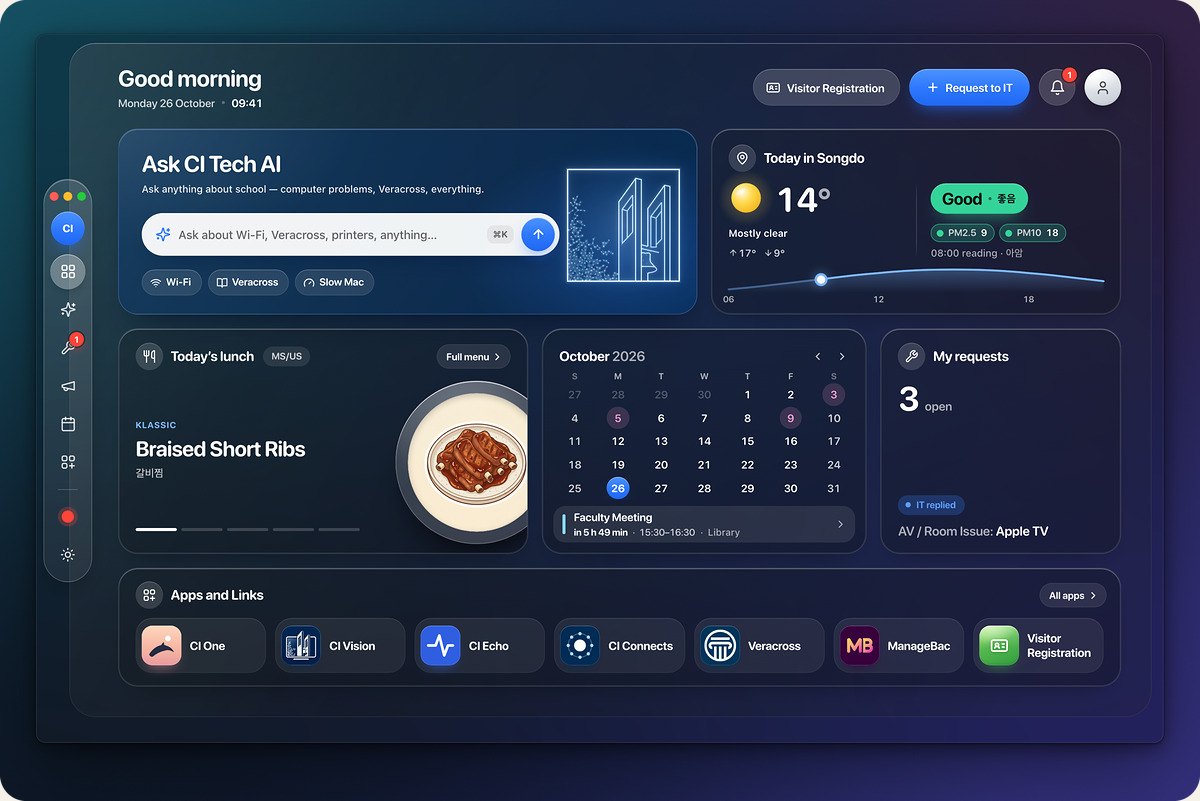
Put the CI Hub dashboard on your own computer.
Want the dashboard on your personal Mac or Windows PC too? Download it here. You sign in with your @chadwickschool.org Google account, so it works on any computer.
Developed by Junyoung Yang (jyyang@chadwickschool.org)
On a phone? CI Hub is for Mac and Windows. On your phone, get the CI One app from the App Store or Google Play.
Your computer
Mac
Apple silicon
Macs with an M1, M2, M3, M4 or newer chip (most Macs from 2020 on).
Download for MacNot sure which Mac you have? Click the Apple menu (top left) → About This Mac. “Chip: Apple M…” means Apple silicon; “Processor: Intel” means Intel.
Install on a Mac
About a minute.
- Open the downloaded CI-Hub…pkg.
- If macOS says “Apple could not verify…”, click Done. Then open System Settings → Privacy & Security, scroll down and click Open Anyway, and enter your Mac password. This appears because the installer hasn’t been through Apple’s notarization yet. It comes straight from the Tech Office.
- Follow the installer to the end.
- Open CI Hub from Applications, click the CI icon in the menu bar, and sign in with Google using your school account.
Install on Windows
About a minute.
- Open the downloaded CI-Hub-Setup…exe. If your browser says the file isn’t commonly downloaded, choose Keep.
- If you see “Windows protected your PC”, click More info, then Run anyway. This appears because the installer isn’t signed with a Microsoft-recognised certificate yet. It comes straight from the Tech Office.
- CI Hub installs in a few seconds and opens by itself. No admin password needed.
- Find the CI icon in the system tray, bottom right (click ^ if it’s hidden), and sign in with Google using your school account. CI Hub is also in the Start menu.
On a school computer? You already have CI Hub. It updates itself — look for the CI icon in the menu bar or system tray.
Questions or problems? Use Request to IT in CI Hub, or contact the Tech Office.